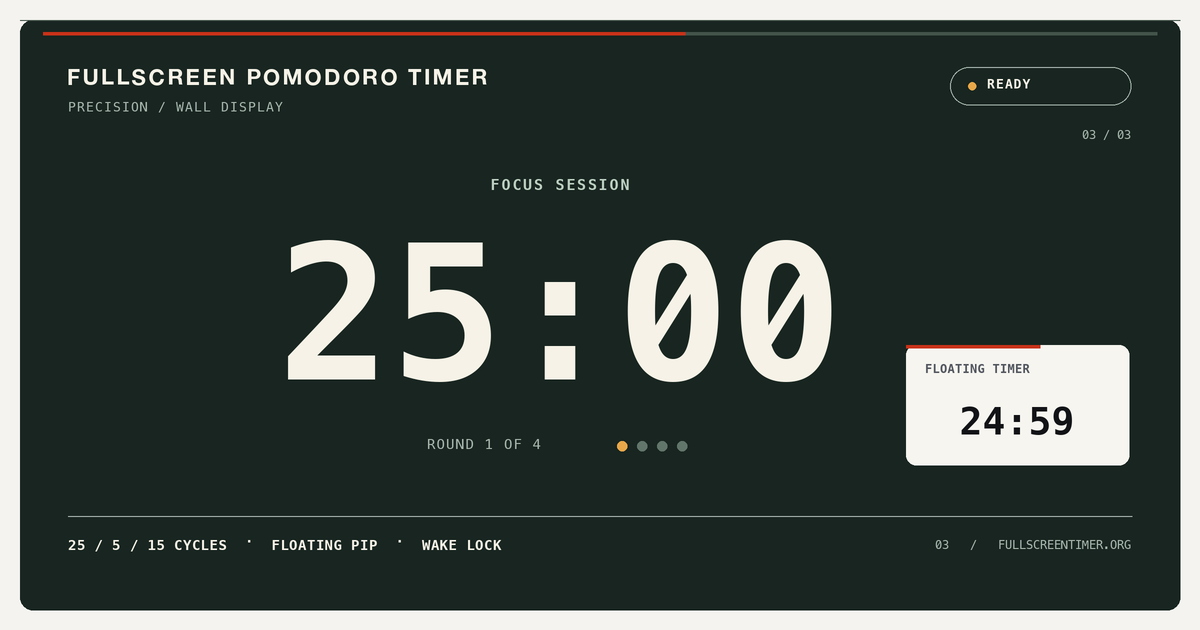
Fullscreen and floating Pomodoro views for real workspaces
The default cycle runs 25 minutes of focus, a 5-minute short break, and a 15-minute long break after four rounds. Adjust the durations and round count and follow the visual round dots. Overtime takes precedence at zero, so turn off Count up in overtime and turn on Auto-Start Next Phase for continuous cycles. For one interval, use the fullscreen timer.
Classroom and study-hall projection
Project the fullscreen pomodoro timer onto a room screen for the entire work and break cycle, so students can see focus minutes and round dots from across the room. Press F for fullscreen, then toggle Silent Flash with M if needed for quiet study or choose Bell for an audible transition. Check the display and cue from the back row. For a single activity instead of a cycle, open the fullscreen timer.
Shared meeting-room agenda
Put the fullscreen pomodoro timer on a shared conference monitor to pace agenda sprints and brief breaks where everyone can see them. Choose custom focus and break minutes for the meeting, and enable Wake Lock where supported to help prevent the screen from dimming. Create preset links for recurring team sessions so the host can reopen the same settings quickly. A link opened on another device starts a separate local session.
Floating PiP for writing and coding
While writing or coding, press P or click Floating PiP in supported desktop Chrome or Edge. The floating pomodoro timer opens a compact always-on-top countdown that you can move to a corner while your document or editor stays active. Start, pause, or reset the current phase from inside the mini window without returning to the main page. Keep that page open because it runs the shared session.
Dual-monitor focus
Place a fullscreen browser tab with the fullscreen pomodoro timer on a secondary monitor, or move its floating PiP window to a side monitor when your setup allows. Your primary display stays available for the document, editor, or call, while the cycle remains in peripheral view without covering those work windows. The live tab title also shows the remaining time, making it possible to check progress when you return to the browser.
Low-glare OLED sessions
For late study sessions or OLED displays, press B to switch the fullscreen pomodoro timer to the Pure Black (#000000) theme, removing the bright background from the timer stage. The phase and remaining time stay visible while the room is dim. If you need a standalone countdown with more control over the display, open the black screen timer and adjust its digit brightness dimmer and pixel drift.
Choose a view and share a setup
A floating pomodoro timer can keep a small countdown above other windows while your main work stays visible. Select Floating PiP (or press P) in a supported desktop browser and allow the requested window to open. Its controls let you start, pause, reset, or return to the main page.
The floating window uses the Document Picture-in-Picture API on supported desktop Chrome and Edge: open this page directly in a browser tab before pressing P. If Floating PiP cannot open, move the browser tab to a secondary monitor in fullscreen. On phones, use a browser tab or Add to Home Screen.
Keyboard shortcuts
| Space | Start or pause the current phase |
|---|---|
| F / Esc | Enter or leave fullscreen |
| R | Reset the current phase |
| M / B | Toggle silent sound or pure black |
| P | Open the floating window where supported |
Cycle parameters
| focus | Focus minutes |
|---|---|
| short | Short break minutes |
| long | Long break minutes |
| rounds | Focus sessions per cycle |
| mode | Start with focus, short, or long |
| auto-next | Use 1 to start the next phase automatically |
| overtime | Use 1 to count up after zero, overriding auto-next |
| theme, sound | Set the display theme and alert |
Example: append ?focus=25&short=5&long=15&mode=focus to this page URL. Copy Preset Link can create a link from your current configuration.
Open a shared preset on each device and start it locally; the link does not synchronize a group. The floating window and its main page share the same active session, but closing or suspending the page can interrupt the display and alerts. Use a separate reminder for critical commitments.