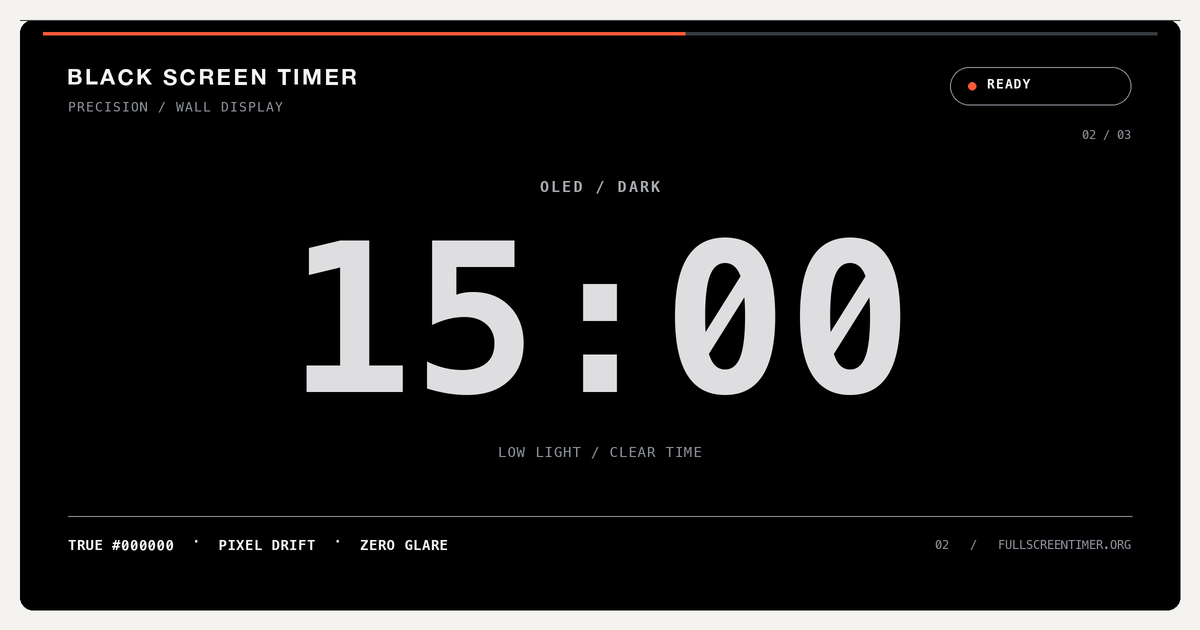
Use a darker countdown comfortably
A black screen timer gives the numbers room to stand out without filling the display with a bright background. The countdown stage uses the exact color #000000; its surrounding page uses a light interface so settings remain readable. Enter fullscreen when you want the stage to fill the available screen.
Understand pure black
On an OLED panel, individual pixels showing pure black can turn off. This is different from a dark gray background. LCD and other backlit screens may still emit light when showing black, and overlays or operating system settings can affect the result. Check your own display from the distance where you will use it. For a general countdown with other display themes, use the fullscreen timer.
Keep a room settled
Use a black screen timer during a projected lesson, quiet reading period, or dim exam room. Select a visible digit brightness and a silent cue when sound would interrupt others. For formal testing, confirm the room can see the clock and use an independent timekeeper.
Reduce light at bedtime
For a wind-down routine, choose a short interval and dim the digits to suit the room. The slider affects the numbers; your device brightness and screen settings remain separate. A black screen timer is not a replacement for an alarm clock when waking up on time matters.
Leave space for the task
Set the countdown on a spare monitor while writing, practicing, or resting between activities. Add a brief label if you need context at a glance. Choose a comfortable viewing distance and take normal screen breaks; a dark display does not eliminate eye strain for everyone.
Pixel drift is a precaution, not a guarantee against image retention. Avoid leaving static displays on for longer than necessary and follow the care instructions supplied with your screen.
Adjust the display and save a preset
The black screen timer starts at 15 minutes with a chime. Select a preset from 5 to 90 minutes or enter your own duration. The brightness setting begins at 85%, and the pixel drift toggle is on by default. Adjust both before the session so the display is comfortable and legible.
Dark display controls
| Stage | Pure black #000000 |
|---|---|
| Digits | 25%–100% brightness; default 85% |
| Pixel drift | Up to ±8 pixels about every 60 seconds while running in black mode |
| Sound | Chime, bell, beep, or silent flash |
| Wake Lock | Requested where the browser and device support it |
Keyboard controls
| Space | Start or pause |
|---|---|
| F / Esc | Enter or leave fullscreen |
| R | Reset |
| M / B | Toggle silent sound or pure black |
| P | Open a floating window where supported |
Set the time
Choose a preset or enter hours, minutes, and seconds for your activity.
Set the light
Use the digit brightness slider, leave drift on if desired, and check the screen from your seat.
Choose the cue
Test a sound or select silent for a flash. Wake Lock availability depends on the device.
Start the session
Enter fullscreen and start. Move the pointer, touch, or press a key to reveal the faded controls.
For a reusable example, append ?m=30&theme=black&sound=silent to this page URL. Copy Preset Link can also create a URL using your selected settings.
Open the link on the intended device and verify the duration and sound before starting. Each countdown runs locally, so a shared link does not make multiple devices start together. Keep the page open; a browser or operating system can suspend it or release Wake Lock.